GUIDE
How to Export Tweets to Google Sheets Automatically in 2026
Pull a search query or a user's tweets into a Google Sheet with Google Apps Script and a per-call data API, then auto-refresh on a time-driven trigger. Full runnable code, pagination, dedup, a no-code path, and the cost math.
Per our own spec, 68 of 116 endpoints bill $0.0008, 24 are free, and 24 sit between $0.0016 and $0.01. Every price ships inside our published OpenAPI document as an x-cost-usd field, so any figure in this post can be checked against the contract that bills it rather than taken on trust.

Almost everyone who wants tweets in a spreadsheet starts the same way: they type =IMPORTDATA(...) into a cell, point it at a Twitter URL, and wait for the rows to appear. They never do. The built-in import functions were designed for a plainer web of public CSV files and static HTML tables, and a modern tweet feed is neither. So the search shifts to add-ons, then to the official API and its developer-account paperwork, and somewhere in that maze the simple goal, a sheet that fills itself with tweets on a schedule, gets lost. This guide gives you the whole recipe instead: a short Google Apps Script that fetches tweets from a per-call data API, parses the JSON, writes clean rows, pages through the cursor, skips duplicates, and reruns itself every hour on a time-driven trigger. There is a no-code path here too, plus the cost math so you can size a sheet before you build it.
TL;DR: Google Sheets cannot pull tweets with
IMPORTDATAorIMPORTXMLbecause those functions cannot send an auth header and cannot read nested JSON. The working pattern is a Google Apps Script that calls a per-call data API withUrlFetchApp, parses the response, writes rows withsetValues, and reruns on aScriptApptime-driven trigger. You store one Bearer key in Script Properties, no developer account or OAuth app required. Reads run $0.0008 per call at about 20 tweets a call, so roughly $0.04 per 1,000 tweets, and a new account gets $0.50 in free credit to test with. The full script, including cursor pagination and id-based dedup, is below, with a no-code webhook alternative for teams who would rather not touch JavaScript. Start at TwitterAPIs pricing once you know your volume.
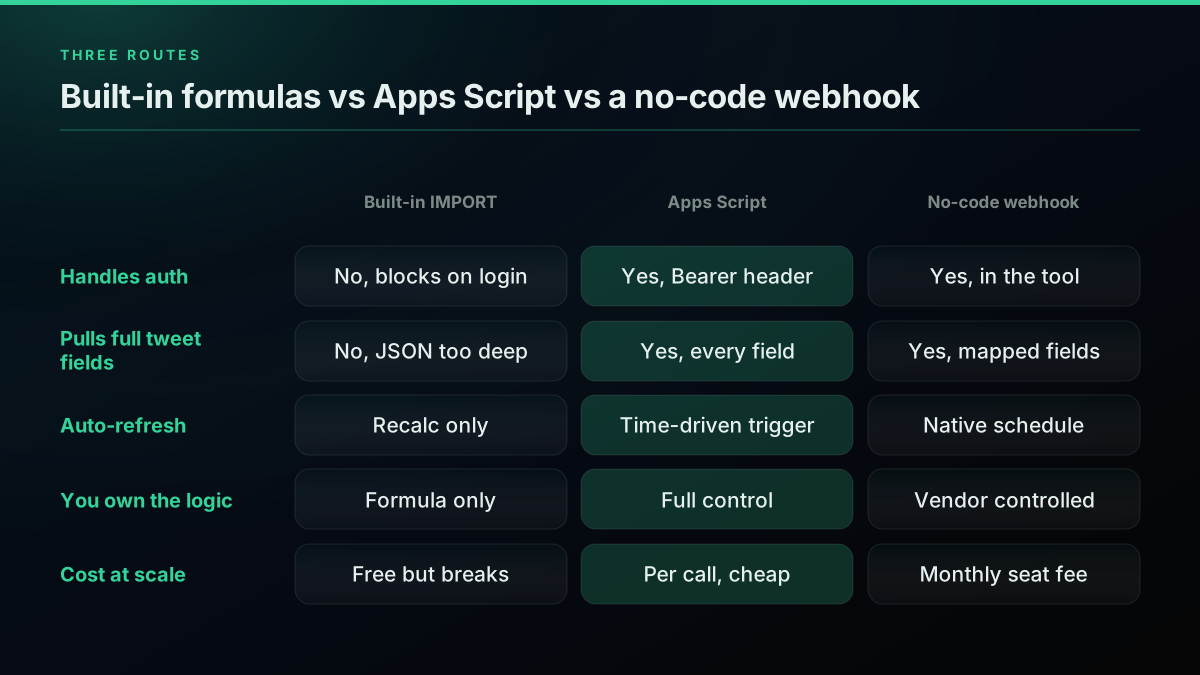
Built-in formulas break on auth, Apps Script gives you the most control, a no-code webhook trades control for a shared UI
There are three honest routes from Twitter to a spreadsheet, and the rest of this guide walks the one that lasts. Before the code, it helps to understand exactly why the fastest-looking route, a formula in a cell, is a dead end, because that is where most of the wasted hours go.
Why Google Sheets Cannot Pull Tweets on Its Own
Google Sheets ships with four import functions, and every one of them fails on Twitter data for the same underlying reason: they were built for public, static, unauthenticated content, and a tweet API is none of those things. IMPORTDATA wants a CSV or TSV file at a URL and chokes on JSON. IMPORTXML wants server-rendered HTML it can address with an XPath, but the timeline is painted by JavaScript after the page loads, so the element it reaches for is empty. IMPORTHTML reads a <table> or <ul> that simply does not exist for a feed of posts. And none of them can attach an Authorization header, which every real data API now demands. That last limitation is the quiet dealbreaker, and it is why a formula can never be the answer no matter how you phrase the URL.
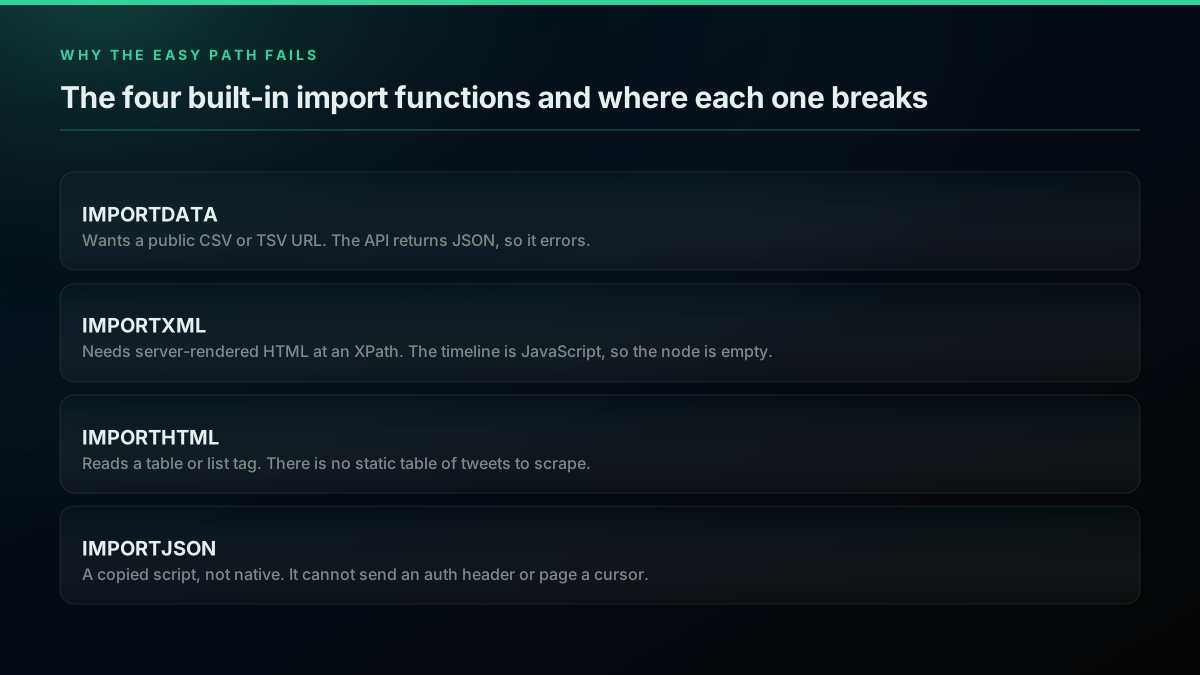
Each built-in import function fails on a different link in the chain, and none can send an auth header
You can watch this play out in the communities where people try it first. The recurring question in the Google Sheets and spreadsheet subreddits is some variation of "why is my IMPORTXML returning nothing for a Twitter profile," and the answer is always the same rendering-and-auth wall.
Using IMPORTXML function to retrieve Twitter name and profile image from r/googlesheets
The demand is old and steady. People have wanted tweets in a spreadsheet for years, well before the API changes of 2023 made the free formula tricks stop working entirely, and the tooling has always lagged the want.
A Great Tool to Automatically Collect and Save Tweets to Google Sheets
Med Kharbach, PhD (@EducatorsTech) view on X
The fix is not a cleverer formula. It is a small script that does what a formula cannot: authenticate, read JSON, and write rows. Google gives you that scripting environment free with every account, and the advanced search operators guide covers how to phrase the query it will send.
The Shape of the Fix: One Script, Five Moves
Before any code, hold the whole pipeline in your head, because it is short. A Google Apps Script bound to your sheet does five things in order. It builds a query, either a search string or a specific account handle. It calls the data API over HTTPS with UrlFetchApp, passing your key in a header. It parses the JSON body that comes back. It writes each tweet to the sheet as a row. And it hands the whole routine to a time-driven trigger so Google reruns it on a schedule with nobody watching. That is the entire architecture, and everything below is just filling in those five moves with real, paste-ready code. If you have never opened the Apps Script editor, the official Apps Script guide for Sheets shows where it lives and how a bound script attaches to a spreadsheet.
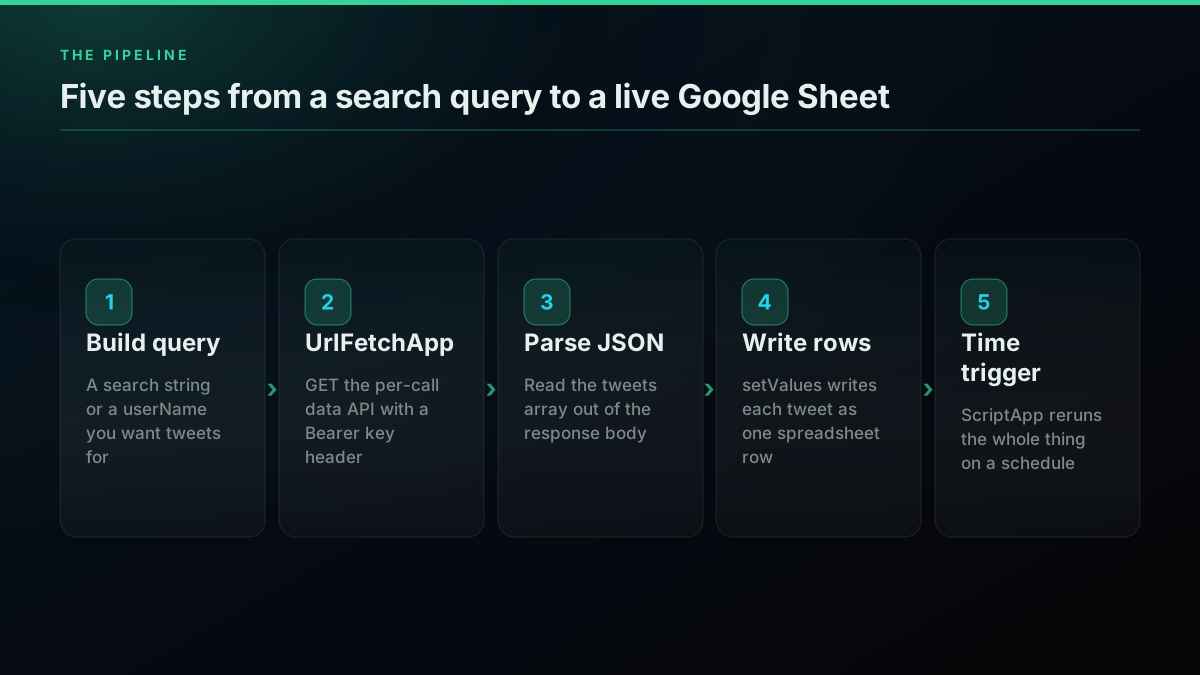
Five moves: build the query, fetch, parse, write rows, then rerun on a trigger
If you learn better by watching someone build it, this walkthrough covers the exact UrlFetchApp and JSON pattern the script below uses, applied to a live API inside the Apps Script editor.
https://www.youtube.com/watch?v=k0su6345KDI
The data side of this uses a per-call read API, which matters for one practical reason worth stating up front: it hands you a key with no OAuth application to register and no developer-account review to pass. If you have wrestled with the official flow before, the how to get a Twitter API key walkthrough and the is the Twitter API free explainer show what that route asks for by comparison.
Step 1: Get a Key and Store It Safely
You need one thing before writing any fetch code: a key, stored where the script can read it but where it will not leak into a shared cell. Sign up for a per-call data API, copy the Bearer key it gives you, and stash it in Script Properties rather than pasting it into the code or a spreadsheet cell. Script Properties is a small key-value store scoped to your Apps Script project, which keeps the credential out of the sheet body and out of any copy you share. You set it once with a tiny function, run that function a single time, then delete the literal from the code.
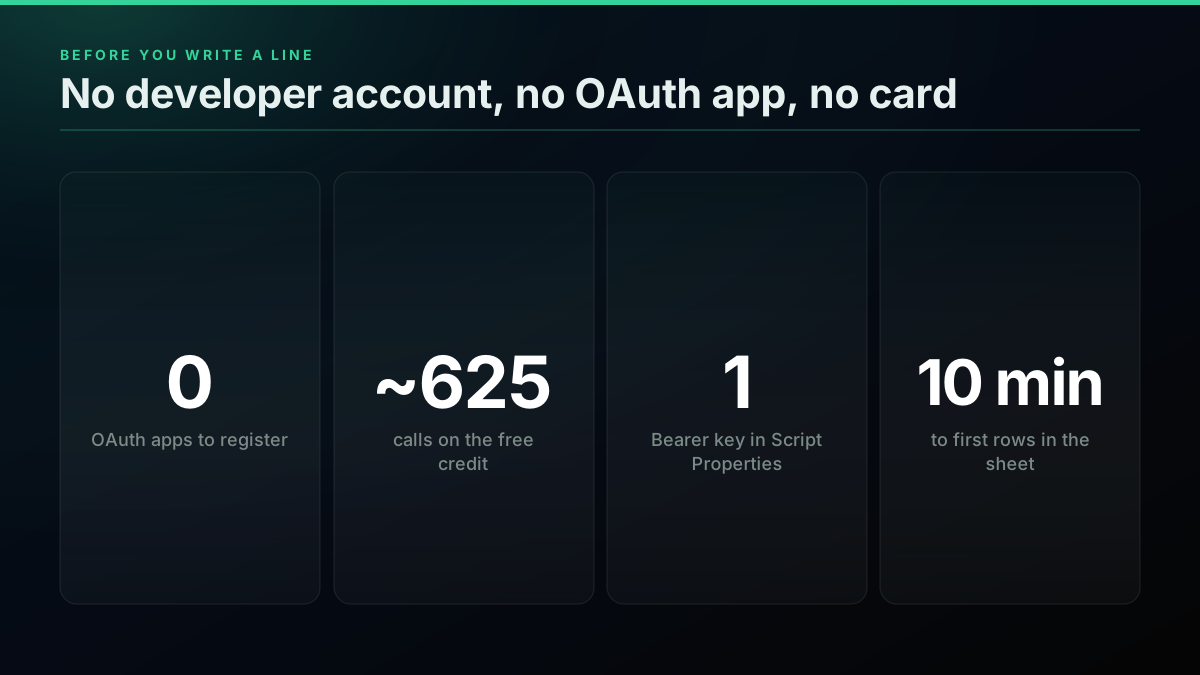
No developer account, no OAuth app, one stored key, and free credit to test the whole thing
Open the sheet, choose Extensions, then Apps Script, and paste this one-time setup function. Run it once, confirm it worked, then clear the literal key so it never rides along in a shared copy of the project.
// Run once, then delete the literal key from this function.
function setKey() {
  PropertiesService
    .getScriptProperties()
    .setProperty('TWITTERAPIS_KEY', 'PASTE_YOUR_KEY_HERE');
}
PropertiesService is the standard Apps Script store for exactly this, per the official Apps Script Properties Service reference. From here on every function reads the key with getProperty and never contains the secret itself. If you want to sanity-check the key from a terminal before touching the sheet, a one-line request confirms it is live:
curl -s "https://api.twitterapis.com/twitter/tweet/advanced_search?query=from%3Anasa&product=Latest" \
  -H "Authorization: Bearer $TWITTERAPIS_KEY" | head -c 400
Note the query and product parameters in that URL; those are the current parameter names the search endpoint expects. With the key stored and verified, the fetch itself is next.
Step 2: The Core Fetch, a Search Query Into Rows
This is the heart of it. You will write three small helpers: one that gets or creates the destination sheet with a header row, one that fetches every page of results for a query, and one that writes the collected rows while skipping any tweet you already have. The fetch helper is where UrlFetchApp does the real work, sending your key in the Authorization header and reading back a JSON body. The per-call API returns about 20 tweets per read for $0.0008, so a handful of pages is a few cents, and a new account's $0.50 of free credit covers roughly 625 calls while you build.
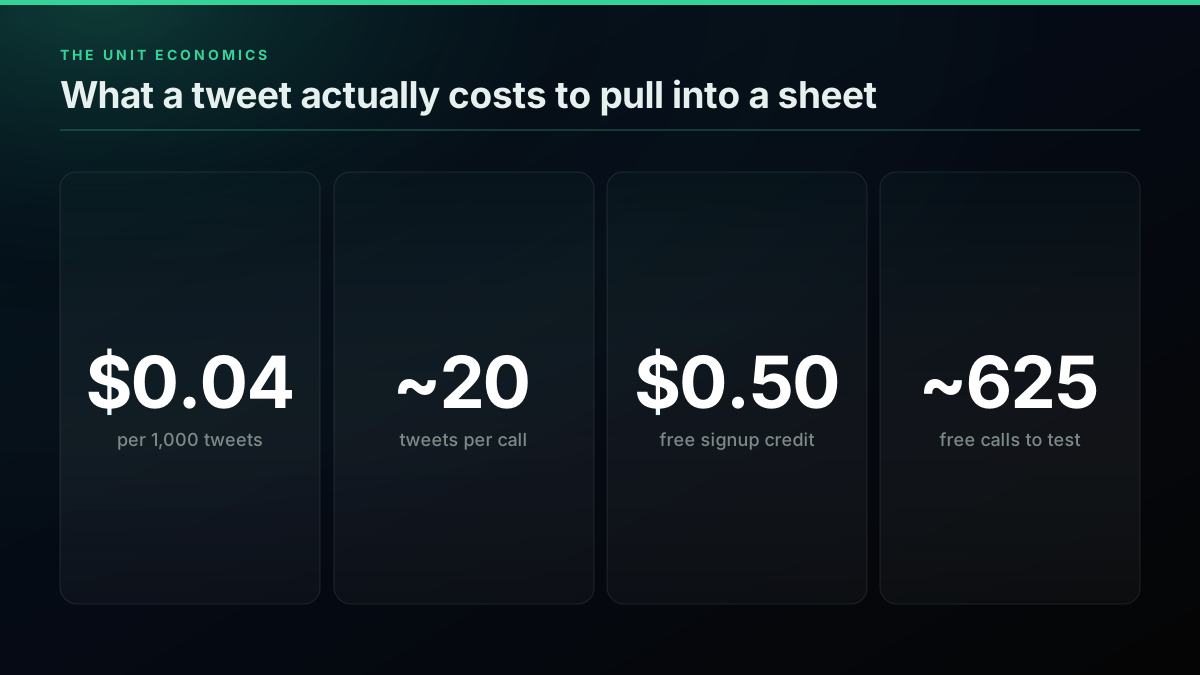
The four numbers that decide what a self-refreshing tweet sheet costs to run
Start with the sheet helper. It looks for a tab by name, creates it with a header row if it is missing, and hands it back, so the rest of the code never worries about setup.
function getSheet_(name) {
  var ss = SpreadsheetApp.getActiveSpreadsheet();
  var sheet = ss.getSheetByName(name);
  if (!sheet) {
    sheet = ss.insertSheet(name);
    sheet.appendRow(
      ['id', 'createdAt', 'handle', 'text', 'likeCount', 'retweetCount', 'url']
    );
  }
  return sheet;
}
Now the fetch. UrlFetchApp.fetch sends the GET request with the Bearer header, muteHttpExceptions keeps a non-200 from throwing before you can read the body, and JSON.parse turns the text into an object you can walk. Each tweet becomes a flat array in the exact column order the header defined.
function fetchTweets_(token, query, maxPages) {
  var base = 'https://api.twitterapis.com/twitter/tweet/advanced_search';
  var out = [];
  var cursor = '';
  var page = 0;
  do {
    var url = base + '?query=' + encodeURIComponent(query) + '&product=Latest';
    if (cursor) { url += '&cursor=' + encodeURIComponent(cursor); }
    var resp = UrlFetchApp.fetch(url, {
      method: 'get',
      headers: { 'Authorization': 'Bearer ' + token },
      muteHttpExceptions: true
    });
    if (resp.getResponseCode() !== 200) {
      throw new Error('API ' + resp.getResponseCode() + ': ' + resp.getContentText());
    }
    var data = JSON.parse(resp.getContentText());
    var tweets = data.tweets || [];
    for (var i = 0; i < tweets.length; i++) {
      var t = tweets[i];
      out.push([
        t.id,
        t.created_at,
        '@' + t.author.username,
        t.text,
        t.favorite_count,
        t.retweet_count,
        'https://x.com/' + t.author.username + '/status/' + t.id
      ]);
    }
    cursor = data.next_cursor;
    page++;
  } while (cursor && page < maxPages);
  return out;
}
The UrlFetchApp service is documented in full in the official Apps Script URL Fetch reference, and JSON.parse behaves exactly as the MDN JSON.parse reference describes. This exact shape, a scripted fetch that lands API data in cells, is what practitioners quietly build all the time for their own dashboards.
This is a collection of Apps Script custom functions for tracking crypto portfolios in Google Sheets.
Paul Razvan Berg (@PaulRBerg) view on X
Finally the entry point that ties them together. It reads the key, runs the query, and passes the rows to a writer you will build in the dedup section.
function importTweets() {
  var token = PropertiesService.getScriptProperties().getProperty('TWITTERAPIS_KEY');
  var query = 'from:nasa';           // any advanced-search string works here
  var rows  = fetchTweets_(token, query, 5);
  writeRows_(getSheet_('Tweets'), rows);
}
Run importTweets once and, after the first-time authorization prompt, your first rows appear. The Python Twitter API tutorial and the Node.js Twitter API tutorial show the same request shape in other languages if your pipeline lives outside Sheets, and the wider complete Twitter API tutorial covers the full read surface.
Start building with TwitterAPIs
$0.0008 a call, about $0.04 per 1,000 tweets at 20 tweets a page. $0.50 free credits. No credit card required.
Pulling One User's Tweets Instead of a Search
Sometimes you do not want a keyword search, you want everything one account posts, a competitor's feed captured before anything gets deleted, or a backfill of your own best work. That is a one-line change. Instead of the search endpoint you call the user tweets endpoint and pass the handle as the userName parameter; the response comes back in the same tweets-array shape, so the loop that builds rows is identical. The column schema you choose here is what makes the sheet queryable months later, so it is worth getting right the first time.
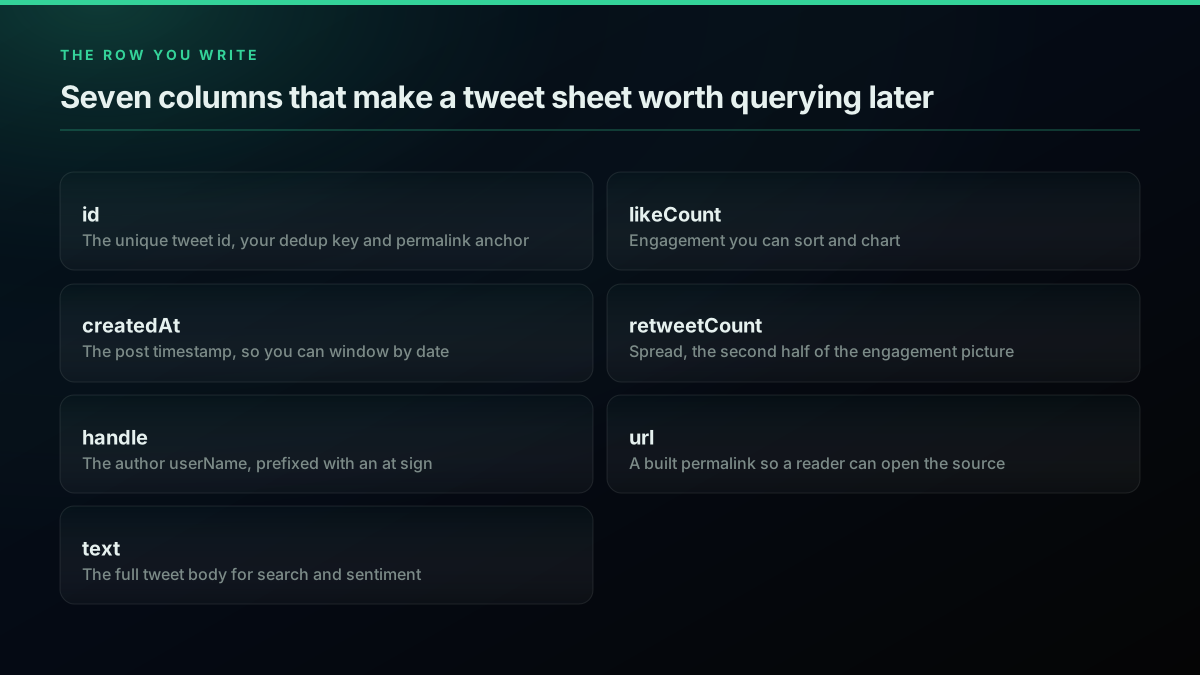
Seven columns that keep the sheet sortable, dedupable, and traceable back to the source
Here is the user-tweets function. It reuses the same writeRows_ writer, so pulling an account is genuinely just a different URL and parameter.
function importUserTweets(handle) {
  var token = PropertiesService.getScriptProperties().getProperty('TWITTERAPIS_KEY');
  var url = 'https://api.twitterapis.com/twitter/user/tweets?userName=' +
            encodeURIComponent(handle);
  var resp = UrlFetchApp.fetch(url, {
    headers: { 'Authorization': 'Bearer ' + token },
    muteHttpExceptions: true
  });
  var data = JSON.parse(resp.getContentText());
  var tweets = data.tweets || [];
  var rows = tweets.map(function (t) {
    return [t.id, t.created_at, '@' + handle, t.text, t.favorite_count, t.retweet_count,
            'https://x.com/' + handle + '/status/' + t.id];
  });
  writeRows_(getSheet_('UserTweets'), rows);
}
For a large account you will want to page through the history rather than grab a single response, which the scrape tweet history guide covers in depth, and the same writer-and-dedup pattern applies to a follower export, walked through in the export Twitter followers guide. For the general shape of pulling any user's tweets, see how to scrape tweets.
Getting Past the First Twenty: the Cursor Loop
A single call returns roughly 20 tweets, and often you want far more, so you page. The API uses a cursor rather than a page number: every response carries a next_cursor string, and to fetch the next page you send that value back as the cursor parameter on your next request. When next_cursor comes back empty, you have reached the end and the loop stops. That is precisely the do while loop already inside fetchTweets_ above, guarded by a page cap so a runaway query can never spin forever and drain your credit.
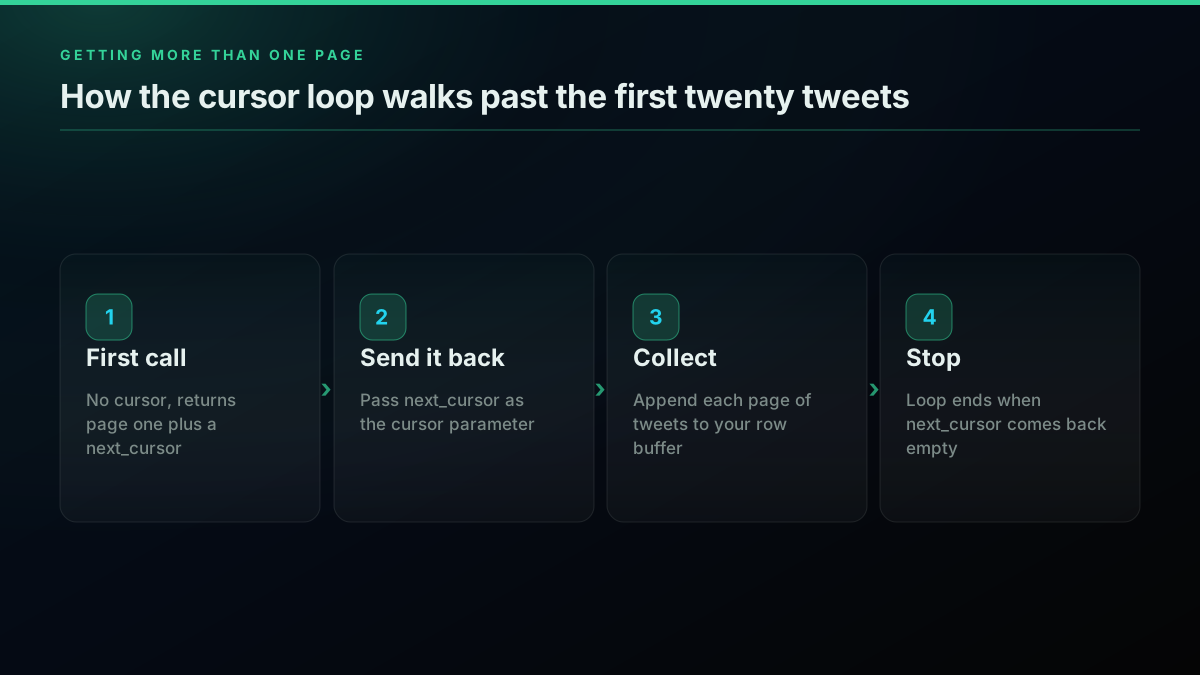
The cursor loop: send next_cursor back as cursor, collect, and stop when it returns empty
The page cap is not optional decoration; it is the safety rail. Without it, a broad query on a busy topic could loop through hundreds of pages in one run. With it, you decide the ceiling per run, let the trigger handle the rest over time, and keep each execution well inside the Apps Script runtime limit.
That runtime limit is the reason the cap and the trigger cadence work as a pair. A single Apps Script execution is capped at a few minutes of wall-clock time on a consumer account, so a naive loop that tries to pull an entire back catalogue in one go will simply time out mid-write and leave the sheet half-populated. The pattern that survives is small runs on a frequent schedule: cap each run at a handful of pages, let the hourly trigger fire again, and rely on the id dedup to stitch the runs together without overlap. Over a day the sheet fills completely, and no single execution ever risks the timeout. If you genuinely need a large historical pull in one sitting, do it from a longer-running environment outside Sheets and import the result once. The cursor contract is identical across search, user tweets, and replies, so this one loop is all you ever need, and the deeper mechanics are in the Twitter API pagination guide. If you are collecting at real volume, the rate limit guide and production best practices are worth a read before you turn the cadence up.
Dedup: Never Write the Same Tweet Twice
The moment your script runs on a schedule, it will re-see tweets it already captured, because a repeated query returns overlapping results. Left alone, that stacks duplicates until the sheet is useless. The fix is a single-column dedup keyed on the tweet id: before appending, read the ids already in column A into a lookup, keep only rows whose id is not already present, and write just those. The id is unique and stable, which is exactly why it belongs in column one of the schema. This writer is the writeRows_ the earlier functions call, and it is the last piece the core pipeline needs.
function writeRows_(sheet, rows) {
  if (!rows.length) { return; }
  var lastRow = sheet.getLastRow();
  var seen = {};
  if (lastRow > 1) {
    var ids = sheet.getRange(2, 1, lastRow - 1, 1).getValues();
    for (var i = 0; i < ids.length; i++) { seen[ids[i][0]] = true; }
  }
  var fresh = rows.filter(function (r) { return !seen[r[0]]; });
  if (!fresh.length) { return; }
  sheet.getRange(sheet.getLastRow() + 1, 1, fresh.length, fresh[0].length)
       .setValues(fresh);
}
Two details earn their place. Writing with a single setValues on one range is far faster than calling appendRow in a loop, because each call across the Apps Script boundary is slow and batching collapses hundreds of them into one. And reading only column A for the id check, rather than the whole sheet, keeps the dedup cheap even when the sheet holds tens of thousands of rows. The setValues method and the range model behind it are documented in the official Apps Script Sheet reference.
It is worth being deliberate about the dedup key. The tweet id is the right choice because it is globally unique and never changes, whereas matching on the text would drop legitimately different tweets that happen to share wording, and matching on the URL is just the id with extra characters. Keeping the id in column one also means a human scanning the sheet can spot the boundary between an old run and a new one at a glance, and it gives any downstream tool, a pivot table, a query formula, an external script, a stable primary key to join on. If you ever need to rebuild the sheet from scratch, the id column is what lets you re-fetch and reconcile without creating duplicates.
Auto-Refresh: the Time-Driven Trigger
Everything so far runs when you click. To make the sheet fill itself, you install a time-driven trigger, an Apps Script feature that runs a function on a clock with the sheet closed and no browser open. You create it once in code by naming the function to run and the cadence, hourly, daily at a set hour, whatever fits, and Google takes it from there. Combined with the id dedup, a scheduled run appends only genuinely new tweets each time, so the sheet grows into a clean, always-current log rather than a pile of repeats.
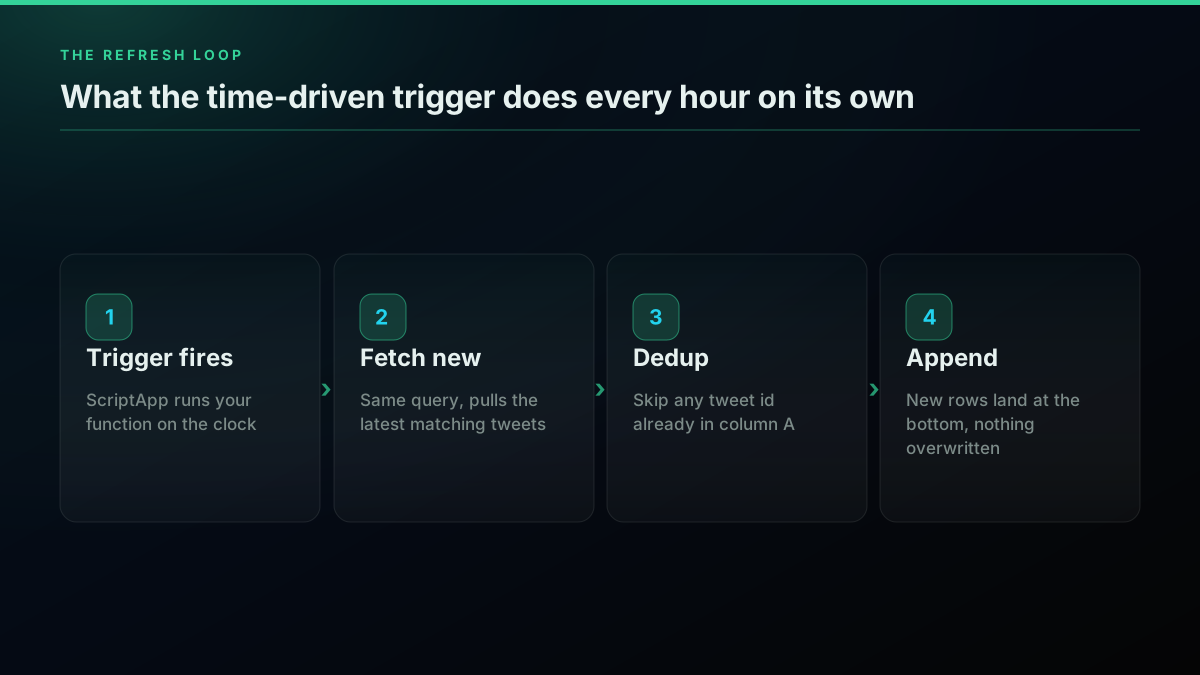
On a schedule: fire, fetch the latest, dedup against existing ids, append only what is new
Here is the installer. It first removes any existing trigger for the same function so re-running the setup never stacks duplicate triggers, then creates a fresh hourly one.
function installHourlyTrigger() {
  var existing = ScriptApp.getProjectTriggers();
  for (var i = 0; i < existing.length; i++) {
    if (existing[i].getHandlerFunction() === 'importTweets') {
      ScriptApp.deleteTrigger(existing[i]);
    }
  }
  ScriptApp.newTrigger('importTweets')
    .timeBased()
    .everyHours(1)
    .create();
}
Run installHourlyTrigger once and the sheet is now autonomous. The ScriptApp trigger builder is covered in the official Apps Script installable triggers guide and the ScriptApp class reference, and you can swap everyHours(1) for everyDays(1).atHour(6) for a once-a-day morning refresh. People do hit a wall here when their trigger depends on a fragile import step, which is the whole reason a script you own beats a brittle add-on chain.
Running scripts with triggers that depend on ImportJSON from r/googlesheets
That is the complete working system. What follows is the no-code alternative for teams who would rather not maintain JavaScript, then the use cases and the cost math.
The cheapest pay-as-you-go Twitter API. Try it free.
$0.0008 a call, about $0.04 per 1,000 tweets at 20 tweets a page. $0.50 free credits. No credit card required.
The No-Code Alternative: a Webhook Into Sheets
If nobody on the team wants to touch Apps Script, you can assemble the same flow visually with an automation tool. The generic pattern is a three-node workflow: an HTTP request node that calls the data API on a schedule, a small transform that maps the JSON fields to columns, and a Google Sheets node that appends the rows. Tools in the n8n and Make family all express this shape, and they add a friendly interface plus a built-in scheduler so a non-developer can maintain it. The tradeoff is real and worth naming: you gain a shared UI and lose some control, and the workflow can break when the vendor renames a node or shifts a pricing tier.
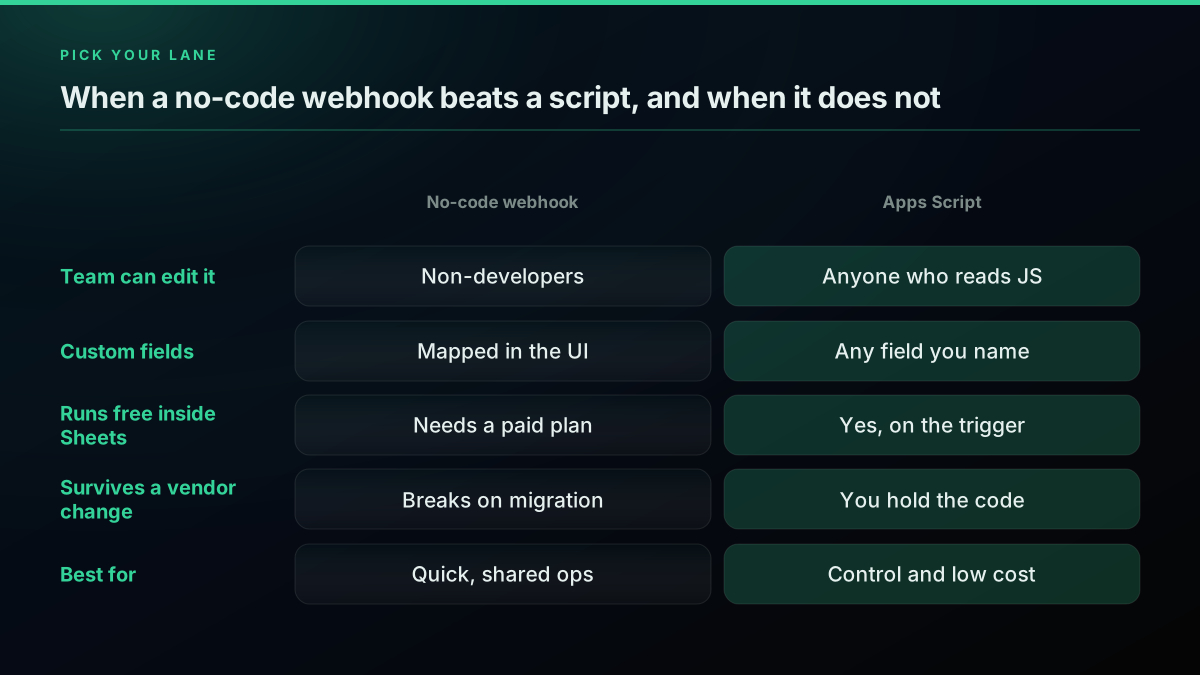
A no-code webhook wins on shared editing, Apps Script wins on control, cost, and durability
The choice is mostly about who maintains the thing and for how long. A no-code scenario is excellent for a quick, shared operation that several non-technical people touch. Apps Script wins when the sheet needs to run untended for a year, when you want fields no visual mapper exposes, or when you would rather not pay a monthly seat for a workflow that runs a few seconds a day. One recurring failure mode in the no-code world is auth: the OAuth handshake many connectors require is exactly the fragile part, which is why a plain Bearer key that never expires makes even the no-code path steadier. For a broader look at the read tooling, see the best Twitter API for scraping and official X API versus third-party providers.
What People Actually Build With This
A self-refreshing tweet sheet is not an end in itself, it is the substrate for four things teams build over and over. A brand-monitoring sheet captures every mention of your name or product, appended hourly for the whole team to skim without a paid dashboard. A competitor tweet log preserves a rival's posts with timestamps, so nothing quietly disappears. A research corpus grows a keyword or cashtag into a dataset you can score. And a content-calendar backfill collects your own best-performing posts so you can repurpose what worked. Each is the same script with a different query and cadence.
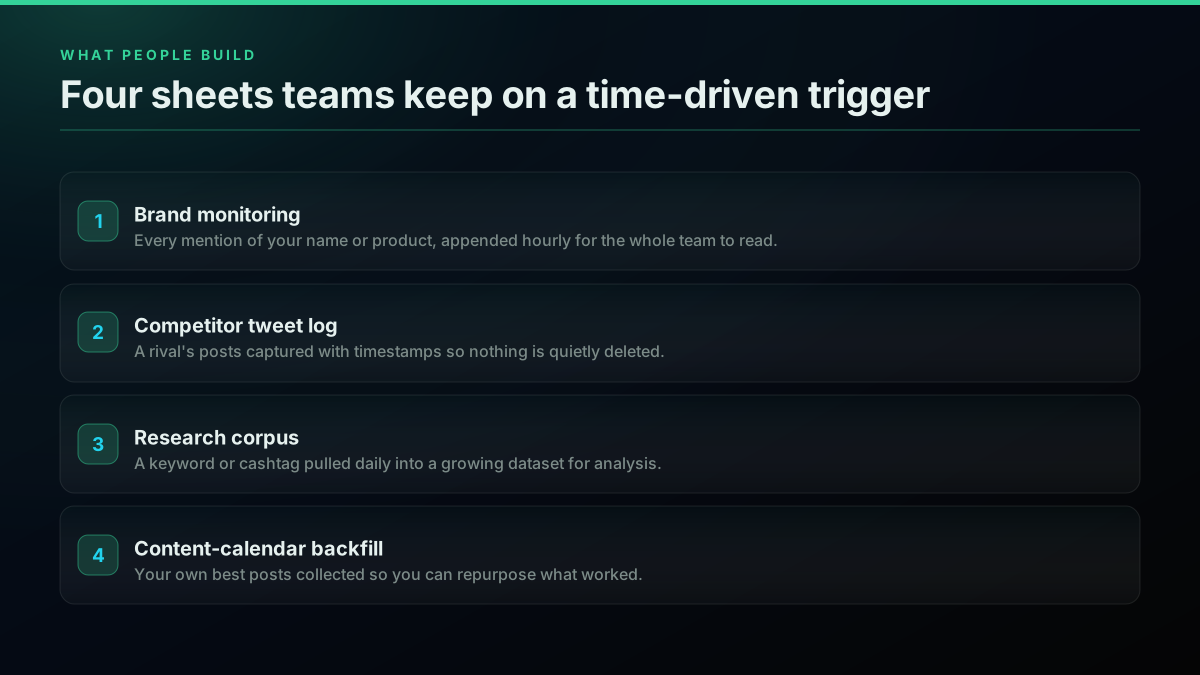
Four common builds, all the same pipeline with a different query and refresh cadence
Brand monitoring is the build that pays for itself fastest. Point the query at your product name plus a couple of common misspellings, set the trigger to hourly, and the whole team reads new mentions in a shared tab without paying for a listening dashboard. Add a column with a simple formula that flags any tweet whose text contains a complaint keyword, and you have a lightweight support-triage view for the price of a few cents a day. Because the data lands as plain rows, every native spreadsheet feature, filters, conditional formatting, pivot tables, still works on top of it.
The research and listening use case is the one people ask about most, usually phrased as wanting to analyze conversation about a topic or a stock in one place. A sheet on a trigger is often the simplest first version of exactly that.
Trying to create a social listening and sentiment tool for Reddit and Twitter to analyze conversation about stocks... where do I start?! from r/sheets
From a filled sheet, the analysis is a short hop. A real-time mention monitor is covered in monitor Twitter mentions in real time, scoring the text is walked through in Twitter sentiment analysis in Python, and a rising-topic watch uses the pattern in the Twitter trends API guide. If the sheet is a stepping stone to a bot, the how to build a Twitter bot guide and the Twitter MCP server guide take it further.
The Cost Math, Before You Build
The reason this pipeline is worth building rather than buying is the arithmetic. On the per-call model, a read is $0.0008 and returns roughly 20 tweets, which lands at about $0.04 per 1,000 tweets. That makes a self-refreshing sheet almost free at ordinary volumes and predictable at high ones, because you pay for calls, not a flat monthly seat that charges the same whether you pull ten tweets or ten thousand.
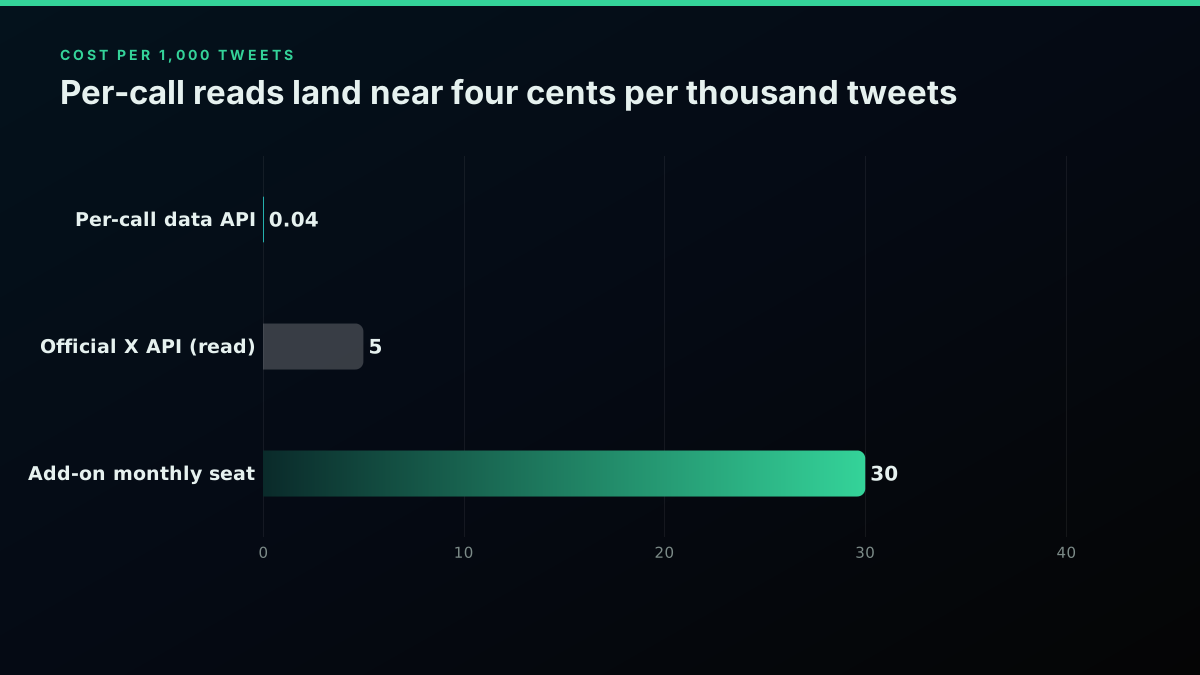
Per-call reads land near four cents per thousand tweets, well under seat-based pricing at low volume
Put the model against your own volume and it stays legible. A sheet capturing 500 tweets a day costs around $0.60 a month; 2,000 a day is about $2.40; 10,000 a day is near $12. The official X API, by contrast, meters per resource read, roughly $0.005 for a single read on its standard tier, which is several times the per-call rate here, and it arrives with the developer-account and window overhead the earlier sections avoided.
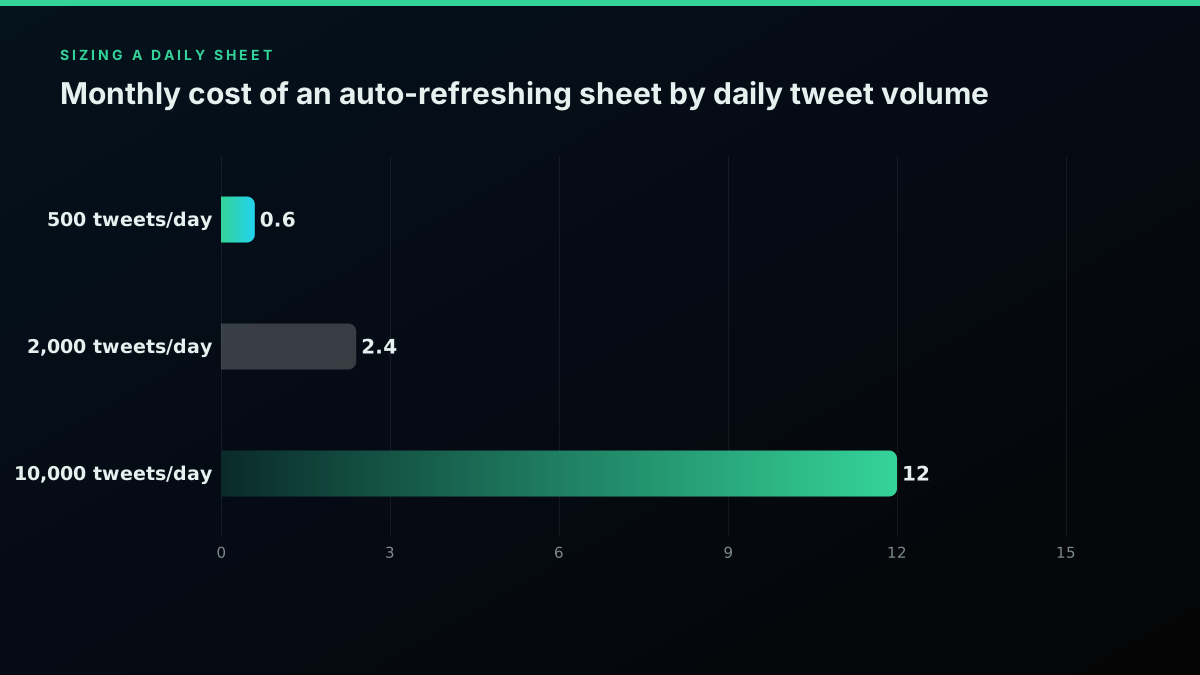
Monthly API cost scales linearly with daily volume, so sizing the sheet is simple multiplication
It helps to compare that against the two alternatives people usually weigh it against. A spreadsheet add-on that captures tweets typically charges a flat monthly seat regardless of how much you pull, which is fine at high volume but poor value for a sheet that grabs a few hundred tweets a day. And the manual route, someone copying tweets into rows by hand, is not free at all once you price an hour of their time; a single afternoon of manual collection usually costs more than a year of per-call reads at ordinary volume. The per-call model wins precisely in the middle, where most real sheets live: enough volume that manual is painful, not so much that a flat seat pays for itself.
The spreadsheet half costs nothing, since Apps Script and time-driven triggers come with every Google account, and a new API account starts with $0.50 in free credit, about 625 calls or somewhere near 12,500 tweets, enough to build and test the entire thing before spending a cent. For a full breakdown, see the Twitter API cost guide, the cost benchmark, and the cheapest Twitter API ranking. If you are moving off another provider, the migrate from twitterapi.io guide and the Twitter API v2 versus TwitterAPIs comparison map the switch.
Recap
The whole recipe fits on a napkin. Google Sheets cannot pull tweets with a formula because the built-in import functions cannot authenticate or read nested JSON, so you write a short Apps Script instead. That script calls a per-call data API with UrlFetchApp, parses the response, and writes each tweet as a row, pages through the cursor with a capped loop, dedupes on the tweet id so no row is ever written twice, and reruns itself on a time-driven trigger so the sheet stays current on its own. You store one Bearer key in Script Properties, with no developer account or OAuth app to set up, and a non-developer team can run the same flow through a no-code webhook if they prefer a visual interface to JavaScript.
What makes it worth doing is the cost and the control together: about four cents per 1,000 tweets, a sheet you fully own, and free credit to prove it out first. Copy the functions above into the Apps Script editor on a fresh sheet, run setKey once, run importTweets to see the first rows, then run installHourlyTrigger to make it autonomous. When you are ready to size it for real, start at the pricing page and read your daily volume off the cost benchmark.
Frequently Asked Questions
Write a short Google Apps Script that fetches tweets from a per-call data API with UrlFetchApp, parses the JSON response, and writes each tweet as a spreadsheet row, then attach a time-driven trigger so the script reruns on a schedule. You do not need a developer account or an OAuth app for the data provider used here; a single Bearer key stored in Script Properties is enough. The built-in spreadsheet functions like IMPORTDATA and IMPORTXML cannot do this because they cannot send an authorization header and cannot read the deeply nested JSON the API returns. The full script, including pagination and deduplication, is in the sections above, and it runs entirely inside the free Apps Script editor bundled with every Google account.
Not with the approach in this guide. The per-call data API used here issues a plain Bearer key the moment you sign up, with no OAuth application to register and no platform review to sit through. You paste that key into Script Properties once and every request from your sheet carries it. That is the main reason this path is faster than the official route, where you first create a developer app, wire an OAuth flow, and wait for tier approval before a single tweet reaches your spreadsheet. If you specifically need the official X API instead, the linked guides cover getting a key and the tier model, but for a read-only sheet the no-account path removes the slowest step entirely.
On the per-call model described here, a read call costs $0.0008 and returns around 20 tweets, which works out to roughly $0.04 per 1,000 tweets. A sheet that captures 2,000 tweets a day therefore costs about $2.40 a month in API calls, and 10,000 a day is near $12. New accounts start with $0.50 in free credit, about 625 calls or somewhere near 12,500 tweets, which is enough to build and test the whole pipeline before spending anything. The spreadsheet side is free, since Apps Script and time-driven triggers are included with every Google account. Size your daily volume first, multiply by roughly four cents per thousand, and you have your monthly bill.
It depends on who maintains it. A no-code webhook tool like an n8n or Make style workflow is faster to wire and can be edited by a non-developer through a visual interface, which suits a shared ops team. Apps Script asks you to read a little JavaScript, but you own every line, you pick exactly which fields land in which column, and it runs free on the trigger without a monthly seat fee. The deciding question is usually durability: a no-code scenario can break when the vendor changes a node or a pricing tier, whereas the script keeps working because the logic lives in your own Google account. For a long-lived brand-monitoring sheet, most teams end up on the script.
Those functions were built for a simpler web. IMPORTDATA expects a public CSV or TSV file at a URL, but a tweet API returns JSON, so the function errors out. IMPORTXML expects server-rendered HTML it can walk with an XPath, but a modern timeline is drawn by JavaScript in the browser, so the node the function looks for is empty when the request lands. IMPORTHTML reads a plain table or list tag that does not exist for tweets. None of the four import functions can attach an authorization header, which every real data API now requires. That header limitation alone rules them out, which is why people who start with a formula end up switching to Apps Script within an hour.
Use an installable time-driven trigger from the ScriptApp service. In the code you call ScriptApp.newTrigger with your import function name, then chain timeBased and everyHours or everyDays to set the cadence, and create it once. From then on Google runs your function on that schedule with the sheet closed and nobody watching. The important companion is deduplication: because a scheduled run repeats the same query, you check each incoming tweet id against the ids already in the sheet and only append the new ones, so the sheet grows cleanly instead of stacking duplicates. Install the trigger by running its setup function a single time from the editor, then confirm it under the Triggers panel.
Yes. Instead of the advanced search endpoint you call the user tweets endpoint and pass the account handle as the userName parameter. The response comes back in the same shape, a tweets array you loop over and write to rows, so the only change from the search version is the URL and the parameter. This is the pattern behind a competitor tweet log or a content-calendar backfill of your own posts. If the account has posted more than one page of tweets, you page through with the same cursor loop the search example uses, since the pagination contract is identical across endpoints. The user-tweets function is shown in full above and reuses the same helper that writes and deduplicates rows.
Check out similar blogs
More guides on the Twitter/X API, scraping, and pricing.

Connect Twitter/X to n8n Without Fighting the Official API (2026)
Two working ways to get Twitter/X data into n8n: a polling HTTP Request node and a native webhook push, both with runnable code, no OAuth handshake either way.

How to Get Everyone Who Retweeted a Tweet via API (2026)
Pull the full list of accounts that reposted any tweet with a real 2026 API. Runnable Python and Node.js, cursor pagination for the whole list, a real amplifier ranking over live data, a bot filter, and the honest per-call cost.
How to Get All Replies to a Tweet via API (2026)
Pull the replies under any tweet with a real 2026 API. Runnable Python and Node.js, cursor pagination, the conversation_id tail sweep for the long tail, nested replies-to-replies, signal-versus-noise filtering over live data, and the honest per-call cost.
How to Search Tweets by Hashtag via API 2026 (Python + Node.js)
Search tweets by hashtag with a real 2026 API in Python and Node.js. Runnable code for the hashtag operator, engagement filters, cursor pagination, deduping retweets, counting authors, and the real per-call cost.

Twitter API Node.js Tutorial 2026: Fetch Tweets in 10 Lines
The 2026 Node.js Twitter API tutorial: fetch tweets in 10 lines with fetch or axios, no SDK and no OAuth dance. Search, profiles, cursor pagination, retries, async, and real per-call costs in working code.

How to Build a Twitter Bot in 2026: The Complete Guide
Build a Twitter bot in 2026 with no-code or Python. Working Tweepy code, auth explained, and the cheap path: $0.0008 a call, 20 tweets a page.

How to Scrape Tweets in 2026: Build a Collector That Does Not Break
A production engineering guide to collecting tweets in 2026: the tweet object, search operators, cursor pagination, rate-limit math, deduplication, storage, and live-tested code.

Twitter API Tutorial 2026: The Complete Developer Guide
The 2026 Twitter API tutorial built after the pricing collapse. Auth, endpoints, code, rate limits, real costs, and the alternative when official gets too expensive.